Usage
Why use Group Member Evaluation?
Group Member Evaluation provides insight into the collaboration process in group assignments. This method can contribute to your teaching in several ways:
• Collaboration consists of multiple skills that can be trained; feedback on the collaboration is necessary for this.
• Evaluating collaboration can encourage active participation and thus help prevent free-riding behaviour.
• It gives the teacher insight into what went well, where tensions arose and what roles students played in the collaboration.
• Giving and receiving feedback are important skills that are also required in the professional field.
To take into account
Group Member Evaluation can be a sensitive issue: it is often not easy for students to give each other feedback, especially if that feedback is not positive. It is therefore important to supervise the process carefully. The following may help:
• Explain that the feedback is about behaviour and contribution, not about the person.
• Emphasise the importance of respectful and substantiated comments.
• Explain clearly what the purpose of the Group Member Evaluation is and be transparent about the role of the process in the assessment (does it play a part in the teacher's assessment or not?).
• Practise giving and receiving feedback in class so that you, as the teacher, can make adjustments.
• Introduce clear criteria. Use the options in FeedbackFruits to clearly indicate the points on which students should give each other feedback. For example, use a rubric with clear criteria.
Steps in Brightspace
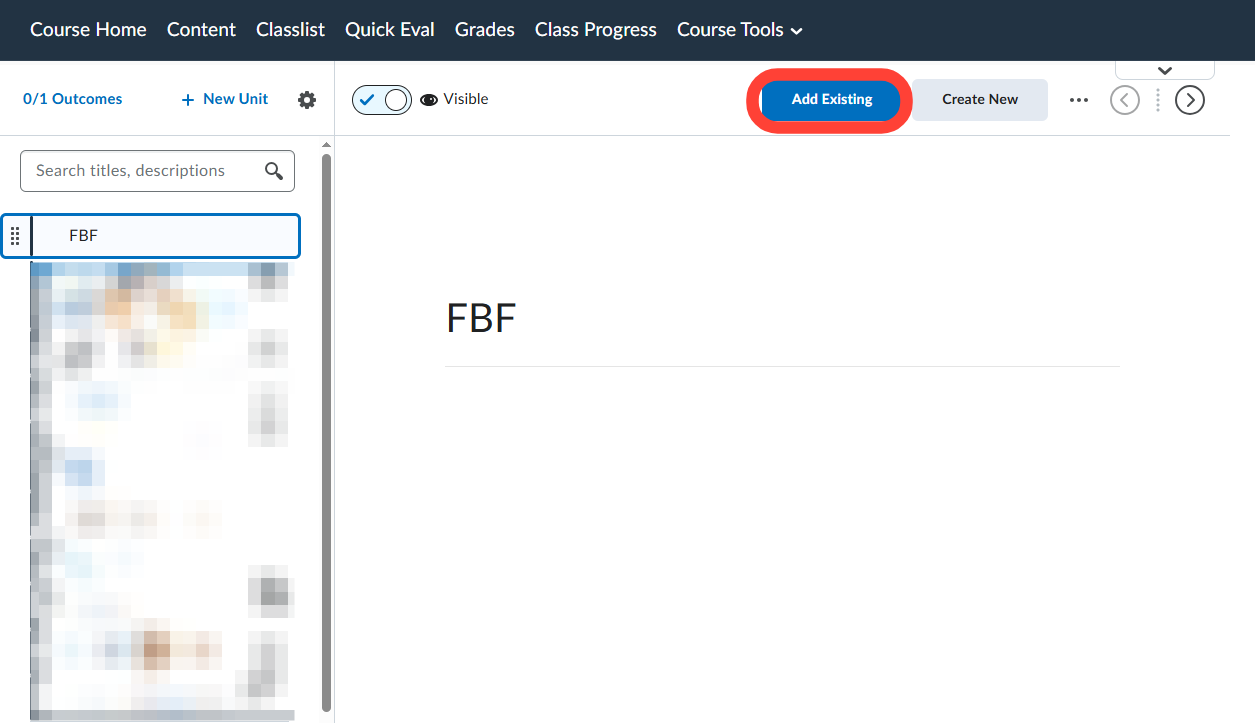
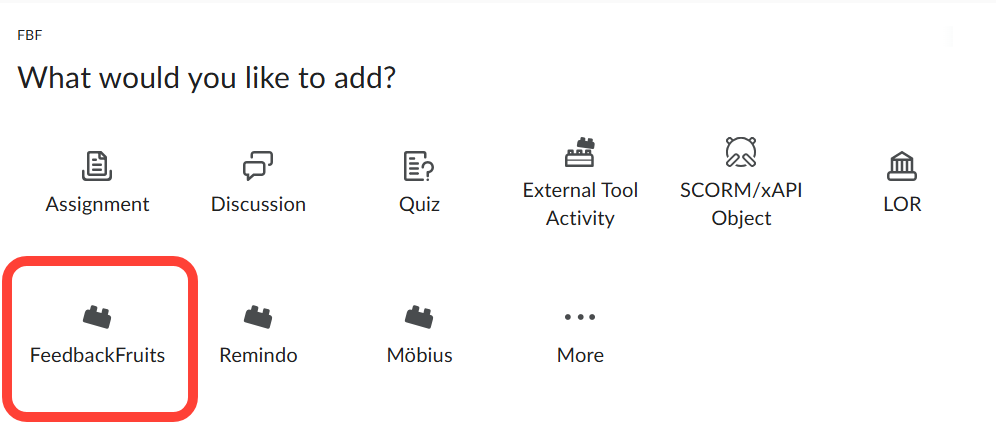
Select the Unit/Folder where you want to add the Group Member Evaluation. Select Add Existing and then select FeedbackFruits.
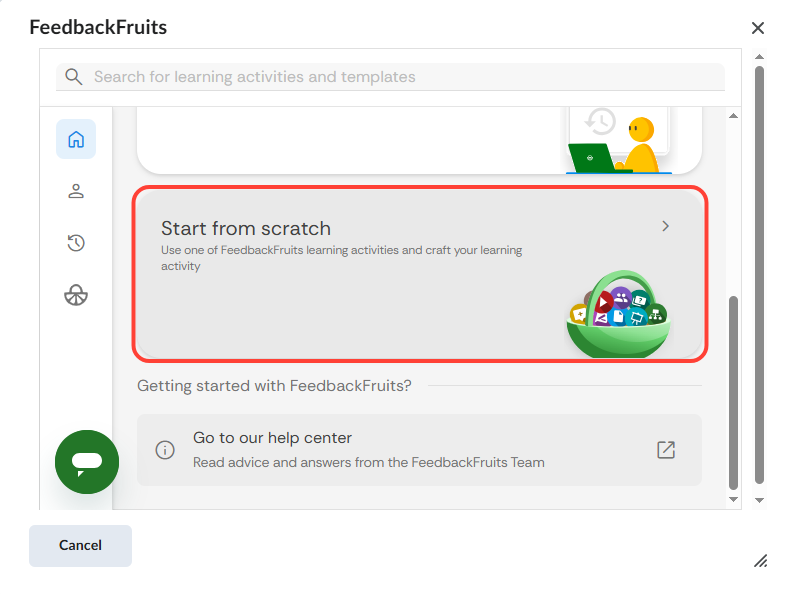
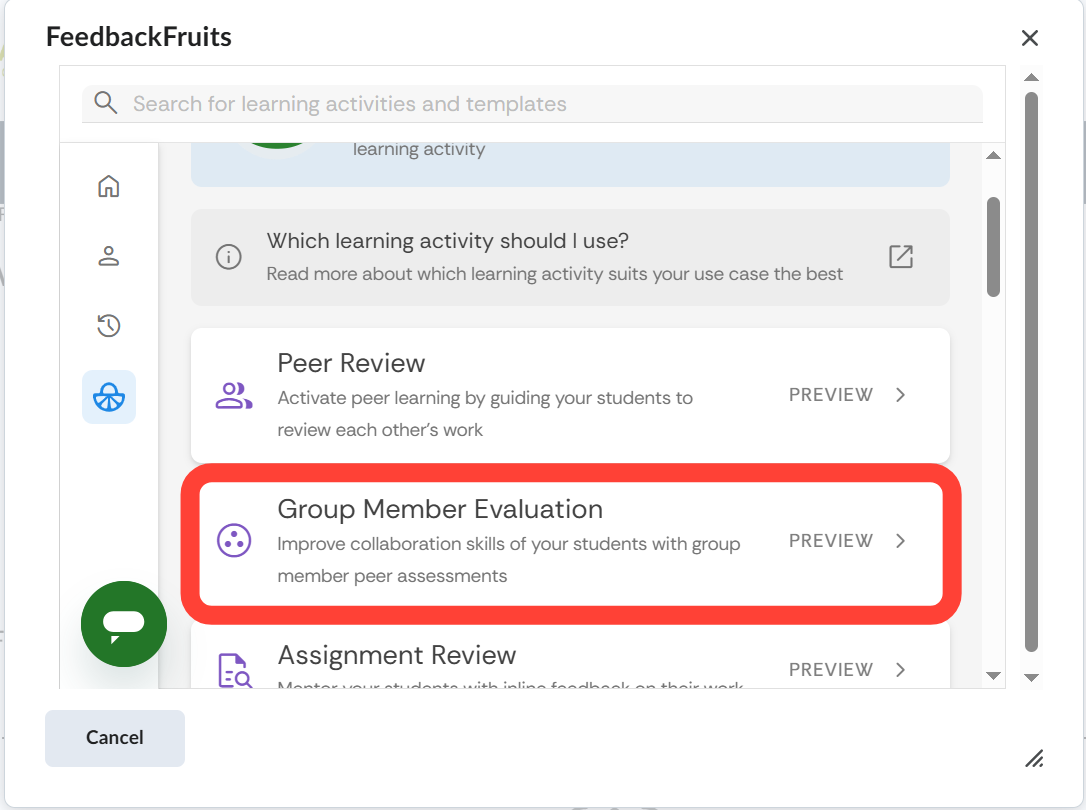
Select Start from scratch and select Group Member Evaluation.
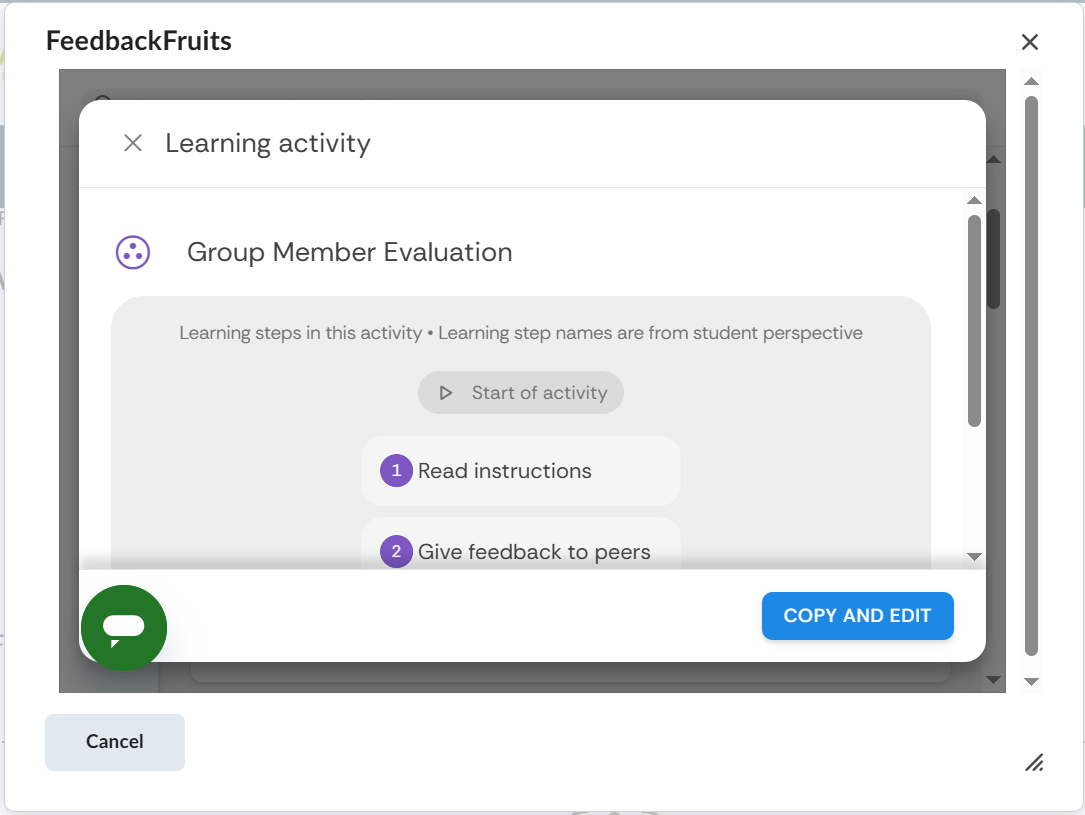
Select COPY AND EDIT
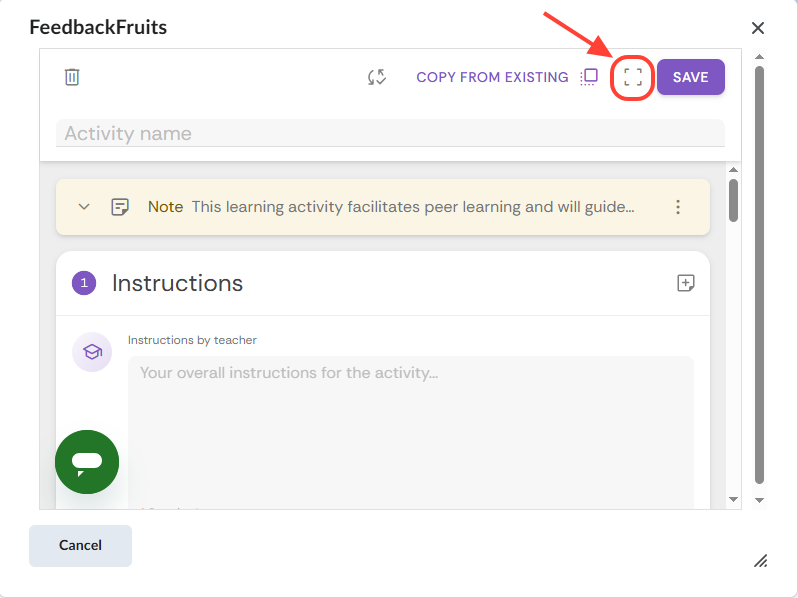
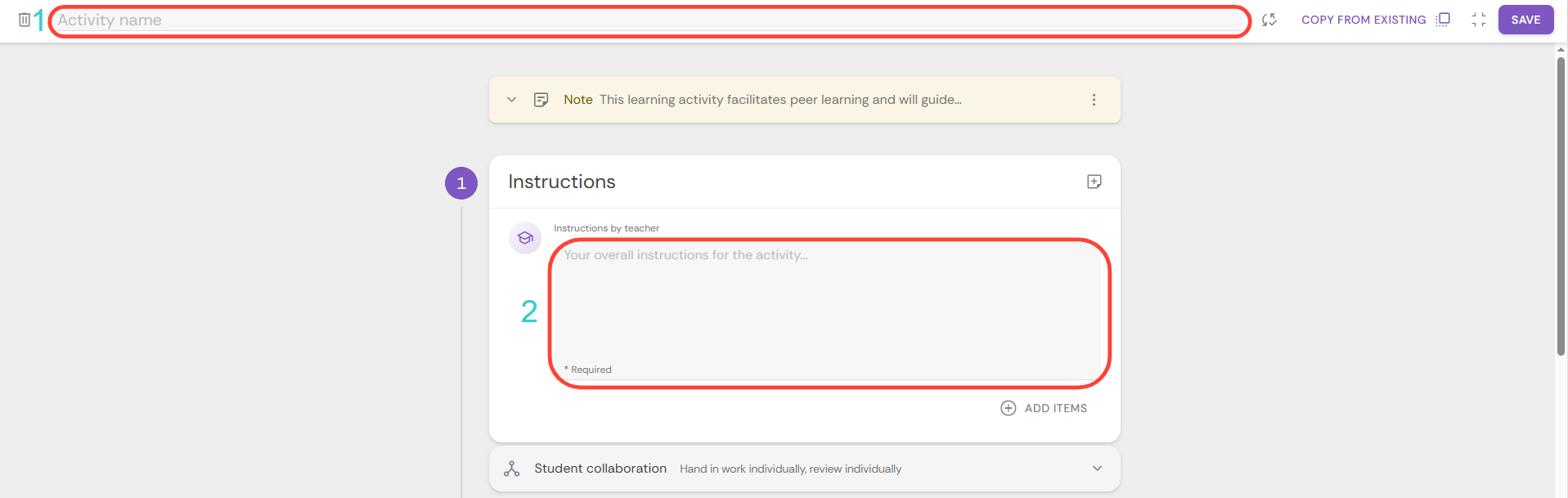
First, enter the Activity name at the top, then enter the Instructions by teacher under step 1 Instructions.
Under Student collaboration, you can indicate whether students submit work individually or as a group and whether they are assessed individually or as a group.
Under step 2 Given reviews, you can adjust settings for reviewing:
- Feedback criteria: here you can configure the criteria for the feedback by creating a new rubric or by selecting previously created rubrics.
- Required number of peers to review: indicate how many students should be reviewed by one student.
- Self-assessment: turn this slider on if you want students to review themselves first.
- Scheduling deadlines: here you can enter a deadline after which no more reviews may be given.
- Allocations: indicate here how the submitted work will be distributed (automatically or manually).
- Anonymity: indicate here whether the reviewer should be anonymised for fellow students (as a teacher, you will always see the names of the reviewers).
- Visibility: here you can indicate when students will be allowed to view their reviewed work.
- Under Guiding students, you can provide additional instructions for reviewing work.
You can enable Step 3 Received reviews if you want students to be able to provide feedback on the reviews they have received.
Next, under Grading, you can adjust the settings for any marks. If you do not want to assign a mark, you can delete this section using the x:

Additional instructions for instructors
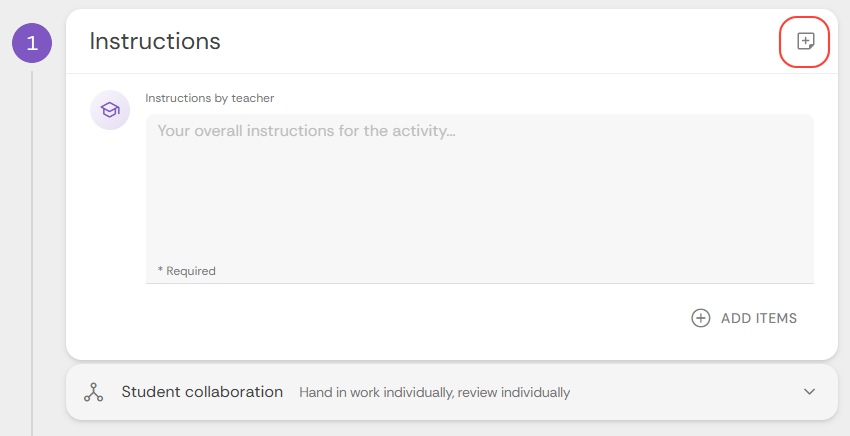
Adding extra steps
If you wish, you can also add other steps by clicking on + Add learning step at the bottom. You can then choose from:
- Participation grading
- Reflections
- Feedback-on-feedback (instructor provides feedback on the reviews given)
Are you finished? Then click on SAVE in the top right corner.