Usage
Why use Automated Feedback?
Automated Feedback provides students with rapid feedback on writing assignments, helping them to make improvements themselves. The tool focuses primarily on lower-order feedback, such as spelling, word count, or use of sources. This leaves teachers more time to concentrate on higher-order feedback, such as content or argumentation.
• Saves you, the teacher, a lot of repetitive marking work
• Helps students improve their work themselves early in the process
• As a teacher, you can monitor how students respond to the feedback and where you can provide additional support
To take into account
• Make it clear that the feedback is supportive and does not replace your substantive assessment. The automatic feedback is generated by AI and may contain errors!
• Use the feedback as a first step in the student's process: it is not a substitute for feedback from the teacher.
• Decide for yourself which aspects of the assessment you want to include: as a teacher, you can enable and disable components yourself. Explain to students which aspects the tool does and does not assess, so that expectations are realistic.
Steps in Brightspace
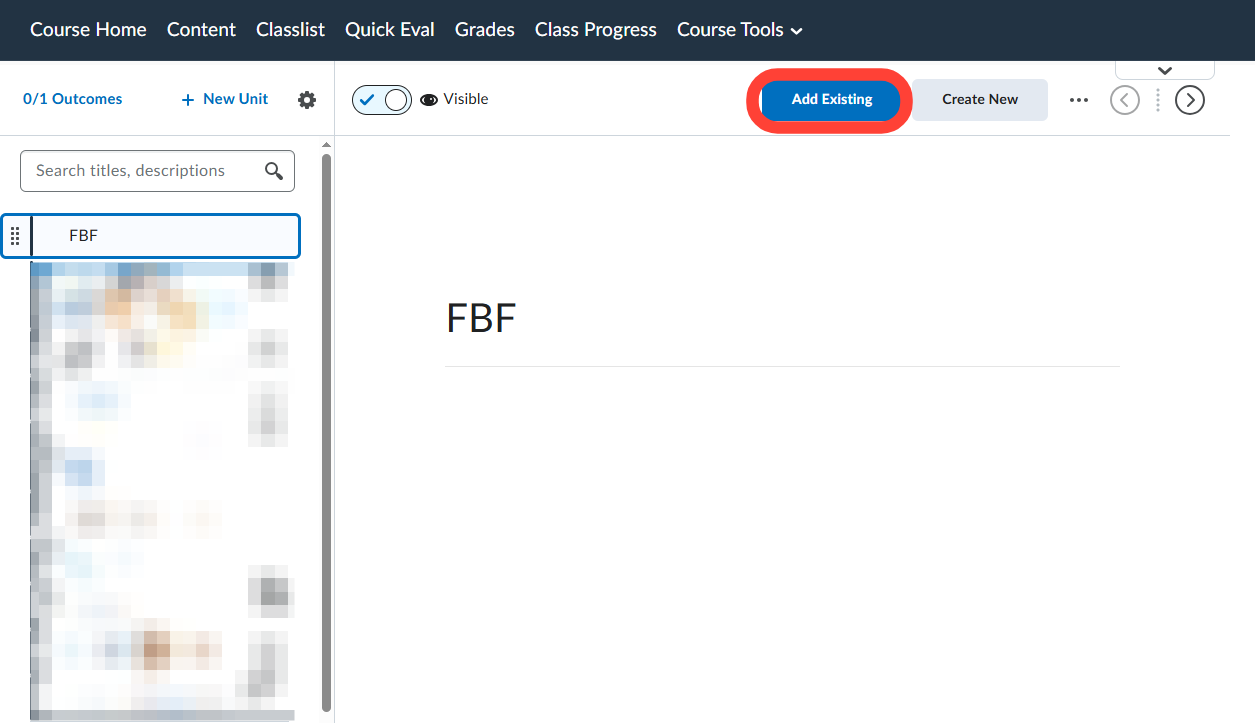
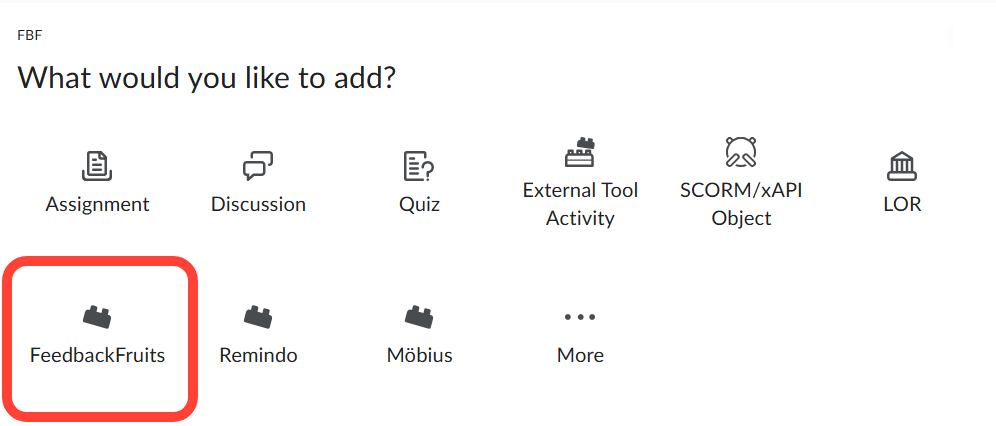
Select the Unit/Folder where you want to add the Automated Feedback. Select Add Existing and then select FeedbackFruits.
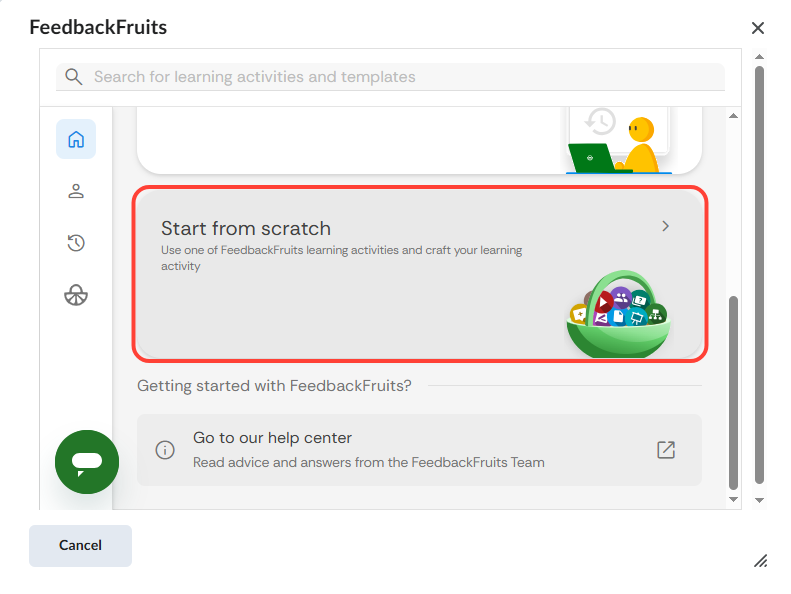
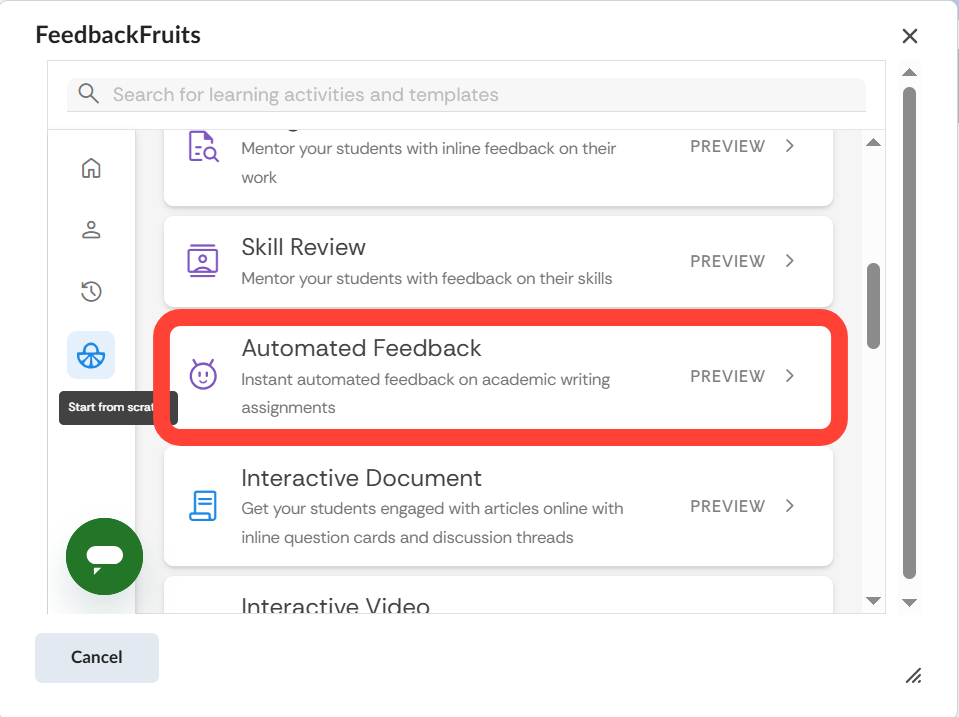
Select Start from scratch and select Automated Feedback.
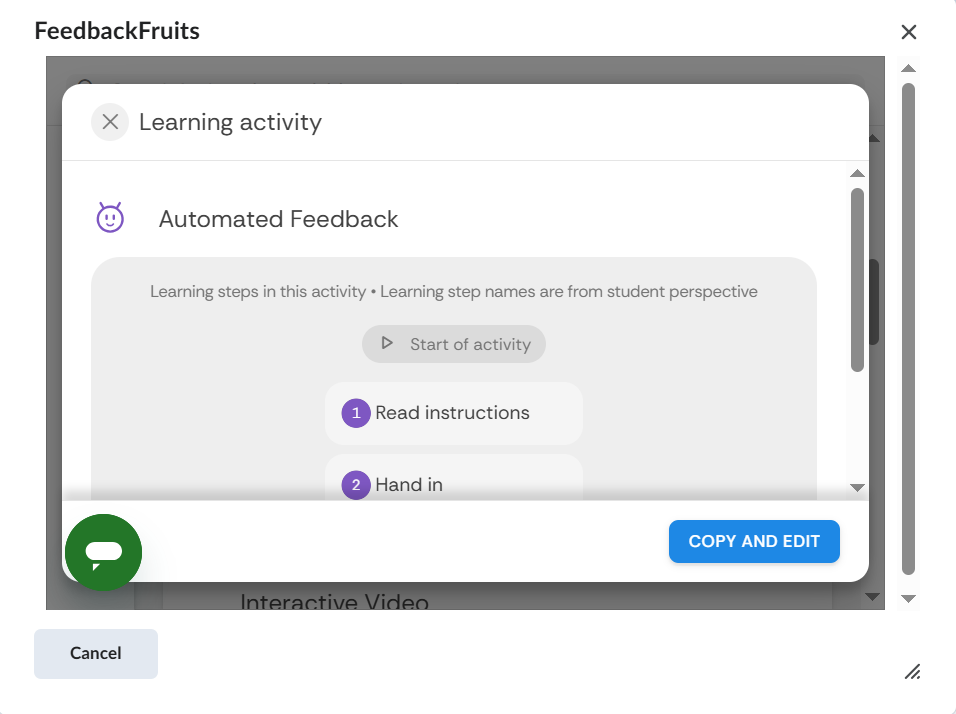
Select COPY AND EDIT
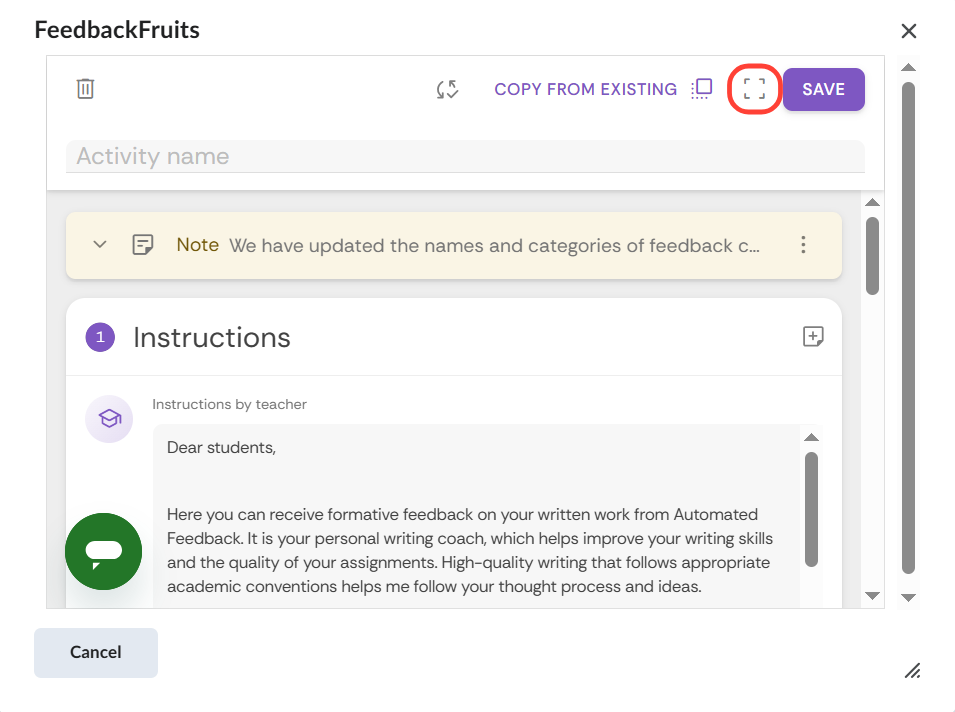
First, enter the Activity name at the top, then enter the Instructions by teacher under step 1 Instructions.
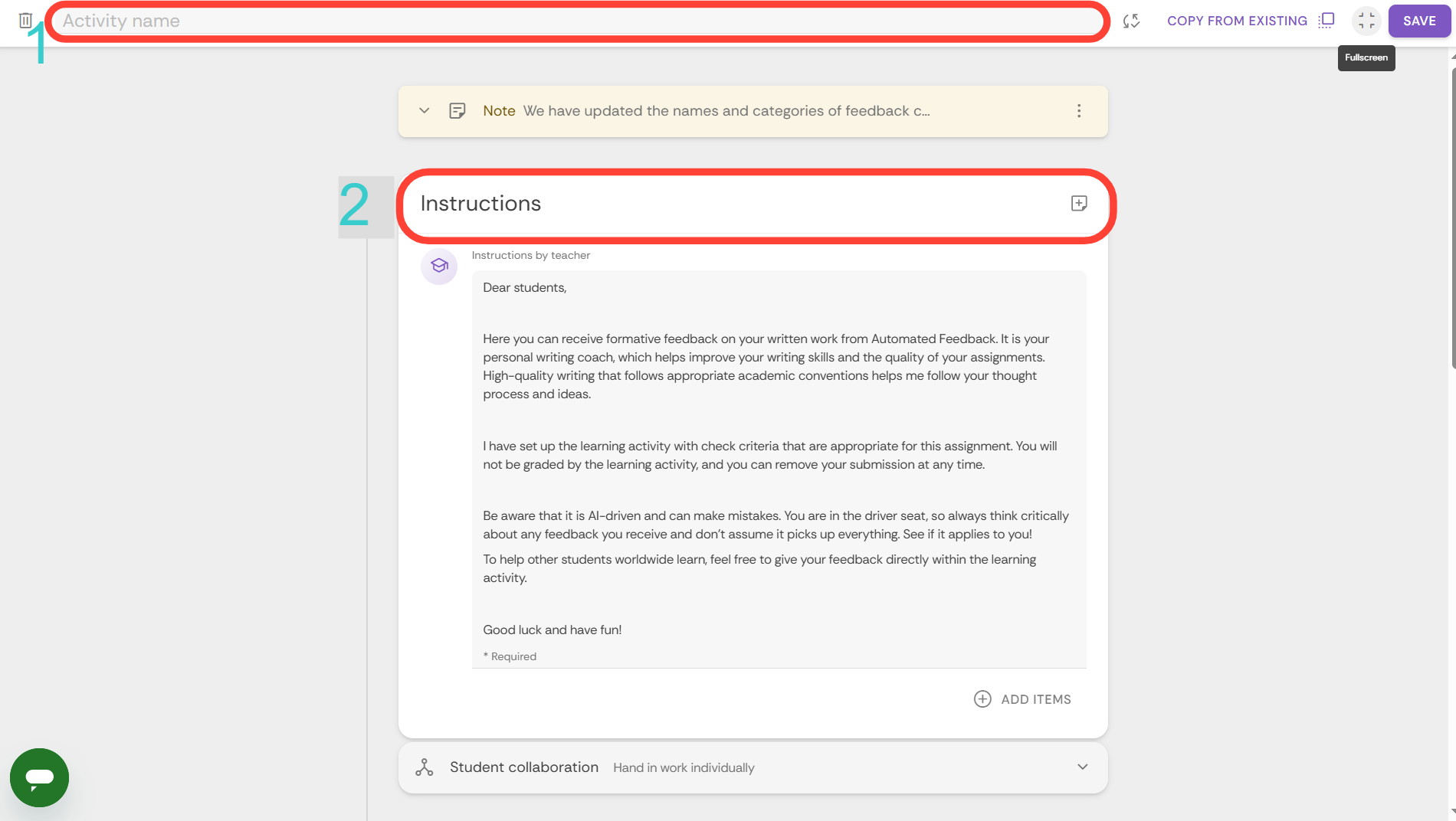
Under Student collaboration, you can indicate whether students submit work individually or as a group and whether they are assessed individually or as a group.
Next, under step 2 Submissions, you can adjust all kinds of settings for submitting:
- Required numbers of files to hand in: here you indicate how many files may/must be submitted.
- Scheduling deadline: here you can enter a deadline after which submissions will no longer be accepted.
- File requirements: please specify here which types of files may be submitted.
- Below Guiding students you can provide additional instructions for submitting work.
In step 3, click on GET STARTED to set up what feedback will be given.
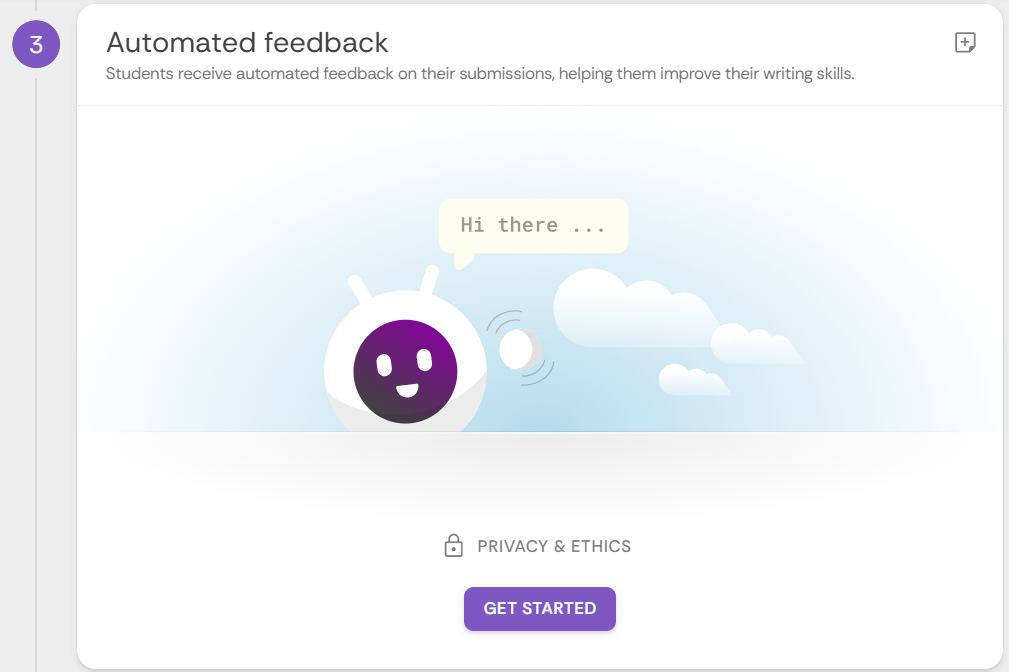
You can choose between:
- New configuration: set everything up from scratch
- Use FeedbackFruits template: you can choose a template from the FeedbackFruits library and customise it
- Copy from existing: this allows you to copy the settings from a previously created assignment
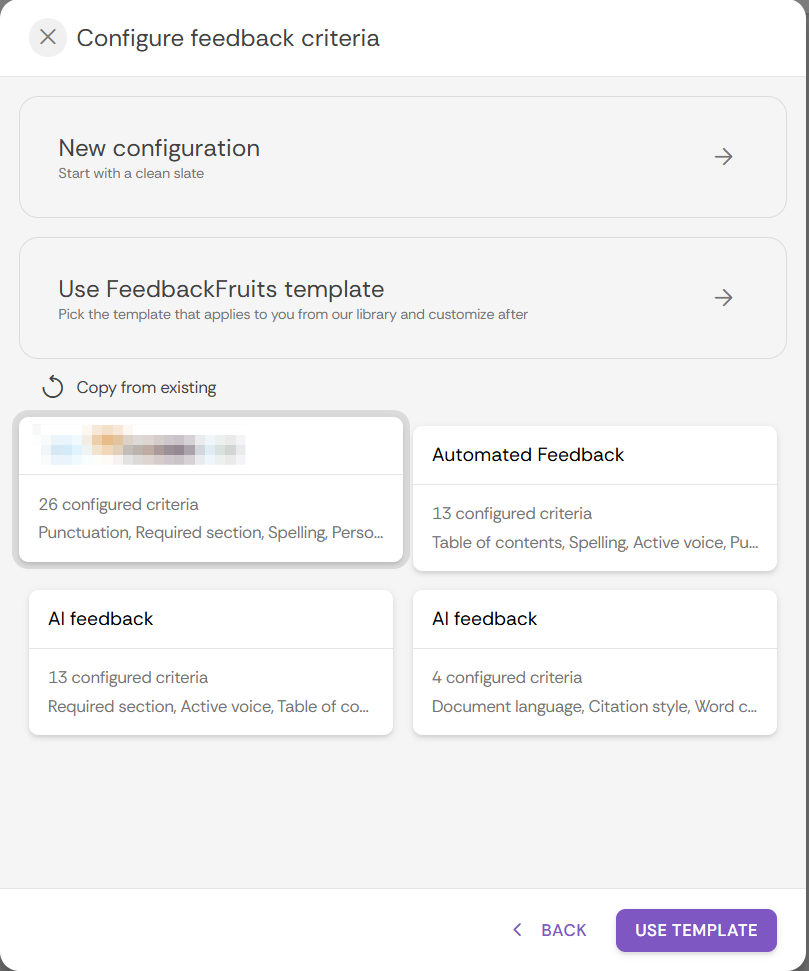
New configuration
After clicking New configuration, select Start building on the next screen.
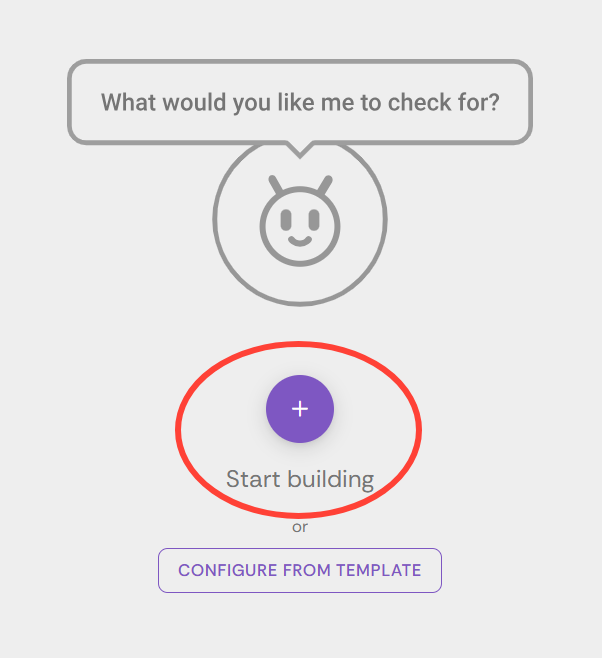
A selection menu with feedback criteria appears on the left-hand side:
- Academic language
- Abbreviation introduction: unusual abbreviations must be introduced
- Active voice: active/transitive form must be used (passive form must be avoided)
- Formal writing style: the student must maintain a formal writing style
- Grammar: the student must use correct grammar
- Personal pronouns: certain personal pronouns specified by the teacher must be avoided
- Punctuation: the student must use correct punctuation
- Spelling: the student must use correct spelling
- Verb tense: the document must be written in a specific verb tense
- Vocabulary: the student must use words and expressions that are appropriate to the context
- Citing and Referencing
- Citation count of references: here you can enter the minimum number of references per article
- Citation style: here you can indicate which reference style should be used
- In-text citation of references: here you can indicate whether citations should be indicated in the main text
- Reference content: here you can indicate what information a paper should contain
- Reference count: here you can enter the minimum and maximum number of references
- Content and Structure
- Document language: in which language should the text be written?
- Required section: if there are mandatory sections in the text, you can indicate this here (with a minimum and maximum number of words, if applicable)
- Sentence length: here you can specify the maximum number of words per sentence
- Word count: specify a minimum or maximum number of words for the entire text here.
- FormatPage numbers: specify here whether the pages should be numbered.
- Table of contents: specify here whether the document should have a table of contents.
- Tables and figuresFigure captions: you can specify here whether images should have captions.
- Figure count: you can specify whether the document should have a minimum or maximum number of images.
- In-text citation of figures: select this option if images must be cited in the main text.
- In-text citation of tables: select this option if tables must be cited in the main text.
- Table captions: you can specify here whether tables must have a caption.
- Table count: you can specify here whether the document must have a minimum or maximum number of tables.
You select a criterion and it will appear in the activity. This allows you to create a list of criteria on which feedback will be given.
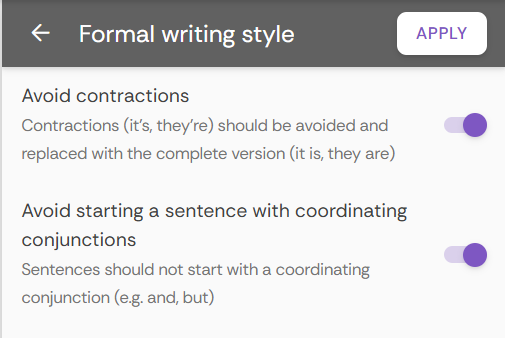
Sometimes you may need to make further adjustments or additional selections within the criterion: make the necessary changes and click APPLY. For example:
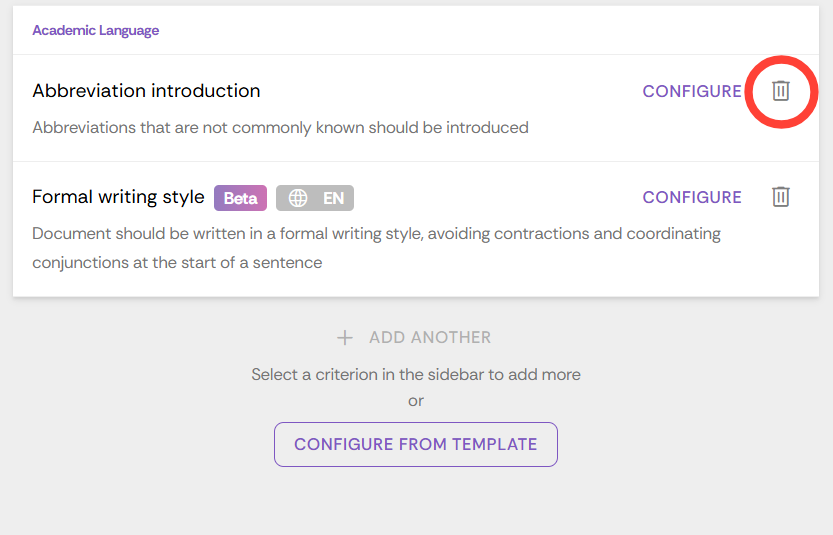
To remove a selected criterion from the activity, click on the bin icon:
Have you finished adding the criteria? Then click on DONE in the top right corner. Would you like to add additional criteria? Then click on CONFIGURE.
Additional instructions for instructors
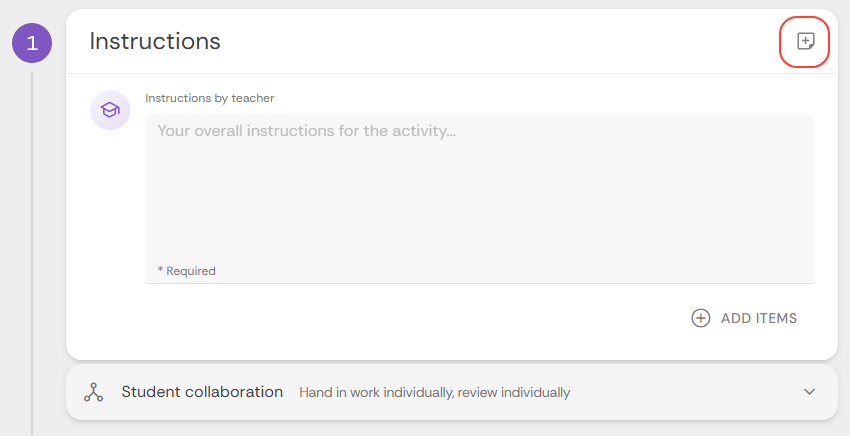
For each step, you can also provide additional instructions that are only visible to instructors. To do this, click on the + sign:
Adding extra steps
If you wish, you can also add other steps by clicking on + Add learning step at the bottom. You can then choose from
- Peer Review
- Assignment Review
- Reflections
- Grading
Are you finished? Then click on SAVE in the top right corner.