Usage
Why use Skill Review?
Skill Review supports providing feedback on skills, such as presentations, oral tests or interviews. Using FeedbackFruits in this process is a good idea for a number of reasons:
• You can assess skills during authentic, live activities, making the feedback applicable and recognisable
• You can structure the feedback and make it consistent by using rubrics
• Students can read back the feedback and reflect on it, making the learning activity more effective
• As a teacher, you maintain a good overview of the student's learning process
To take into account
Skill Review provides students with feedback on their skills. This is particularly effective if students can then act on the feedback they receive. The following may help:
• Communicate in advance what you will be giving feedback on and how, so that students can prepare themselves properly.
• Give feedback during or immediately after the activity so that students have quick access to it. This way, it is still fresh in their minds and they can better contextualise the feedback.
• Schedule time for reflection and follow-up.
• Practise receiving and processing feedback in class.
• Be mindful of the emotional impact of feedback; emphasise that the goal is to learn from it.
Steps in Brightspace
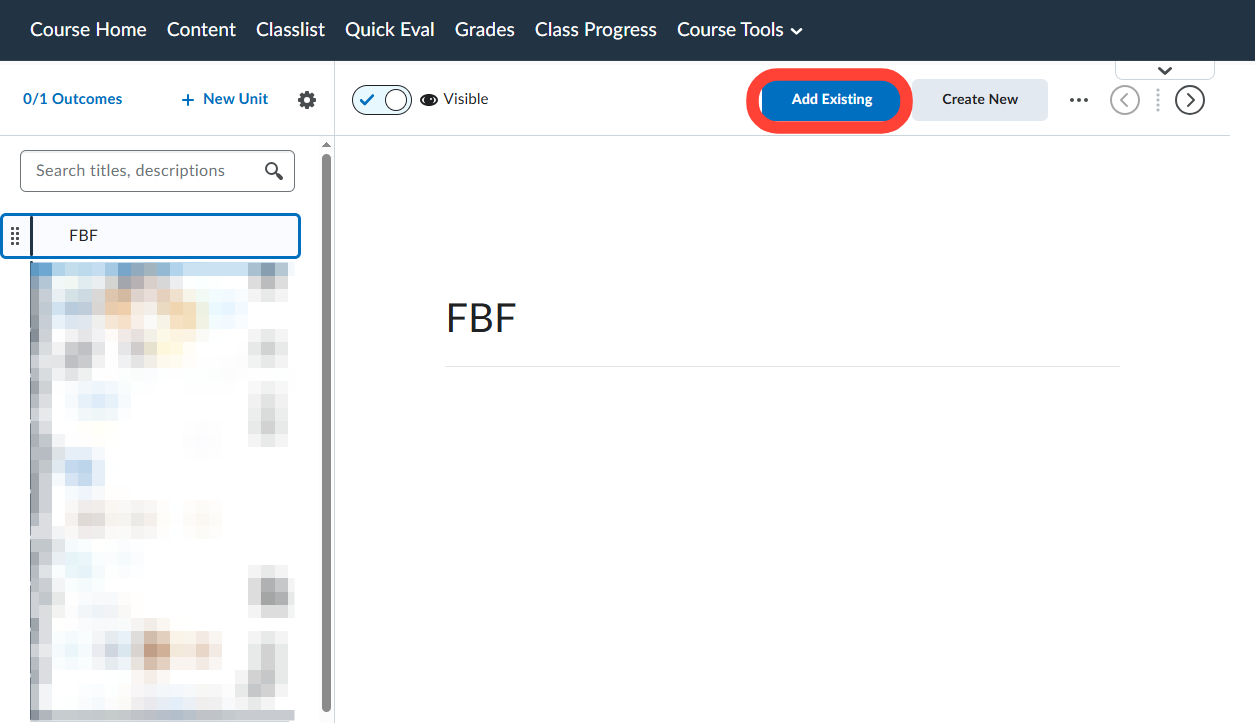
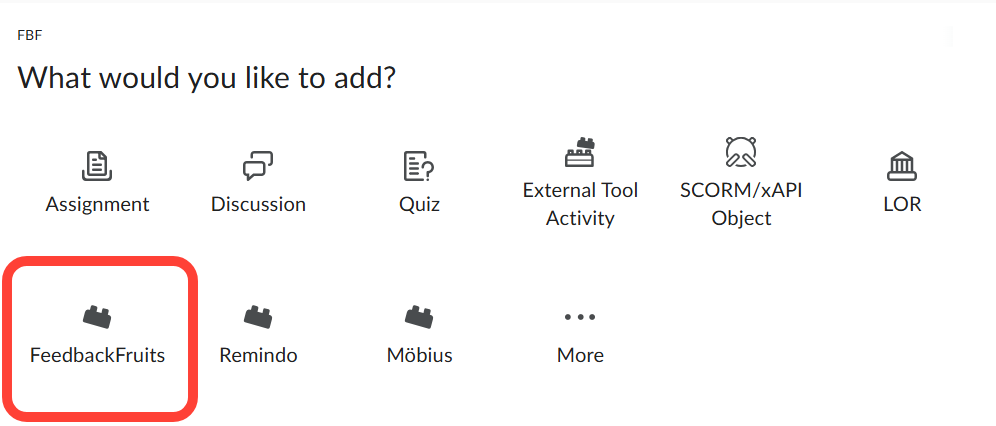
Select the Unit/Folder where you want to add the Skill Review. Select Add Existing and then select FeedbackFruits.
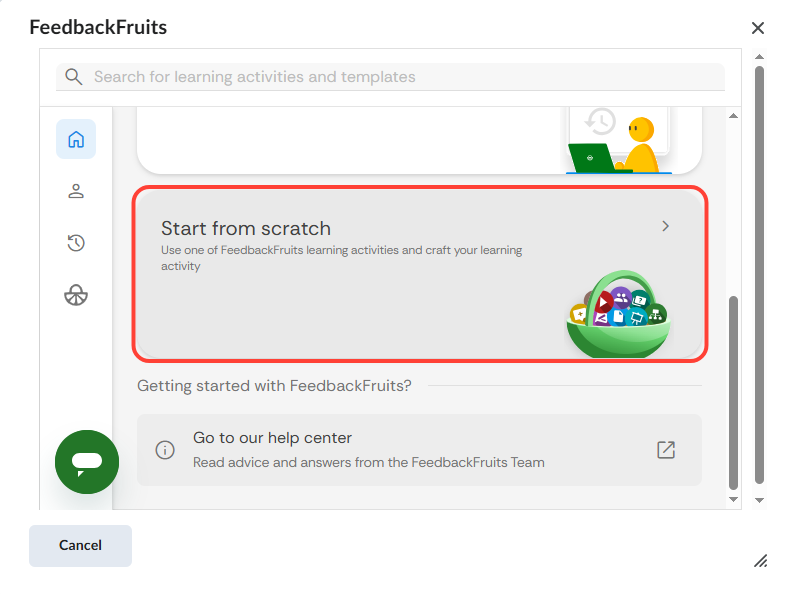
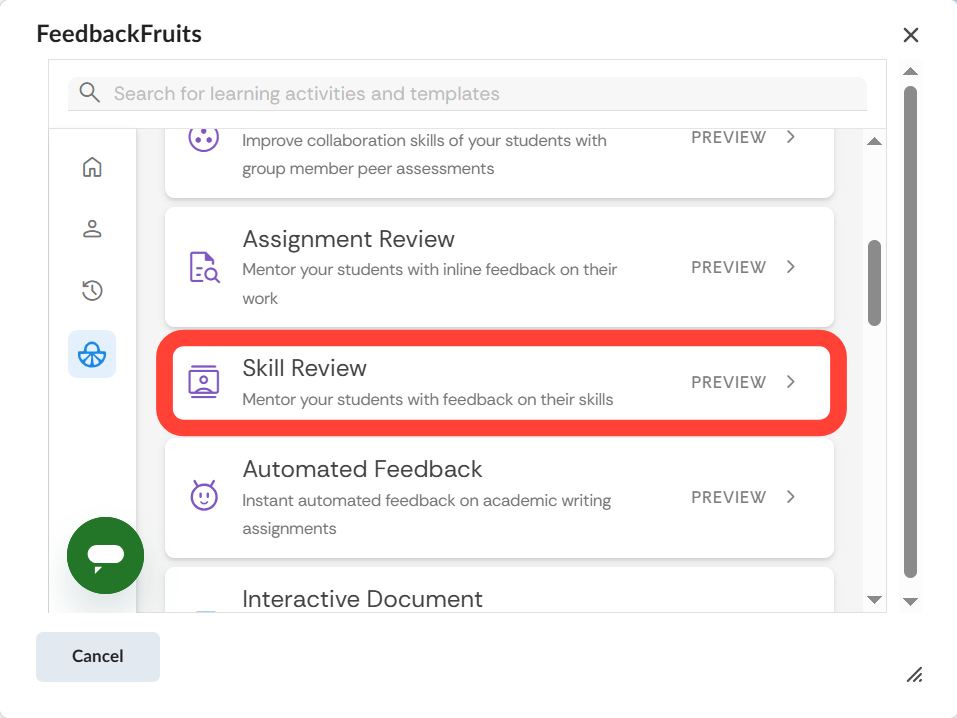
Select Start from scratch and select Skill Review.
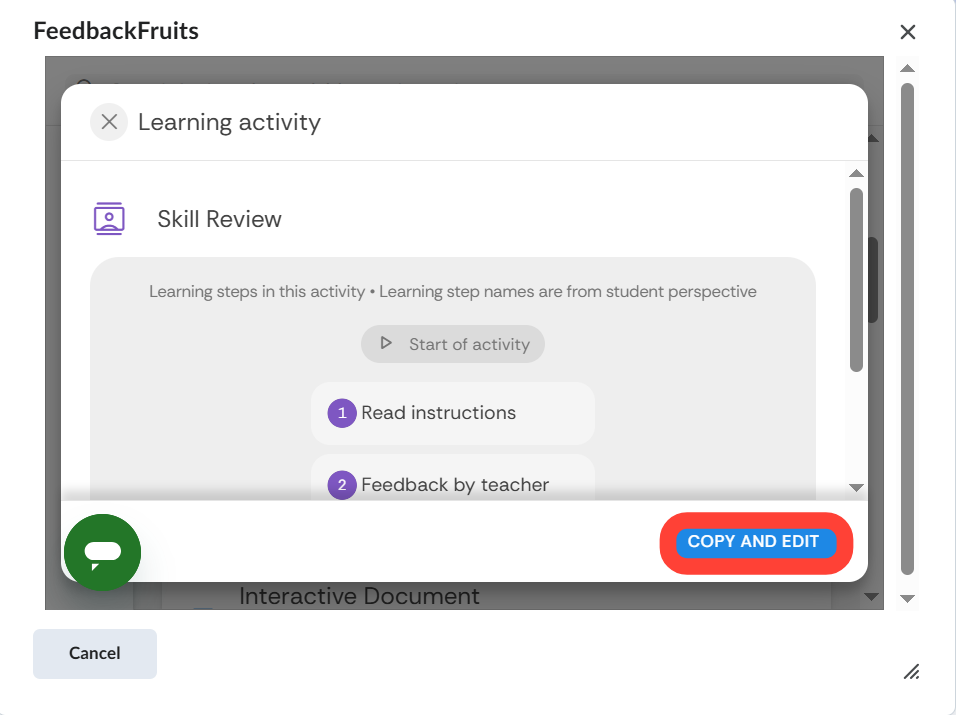
Select COPY AND EDIT
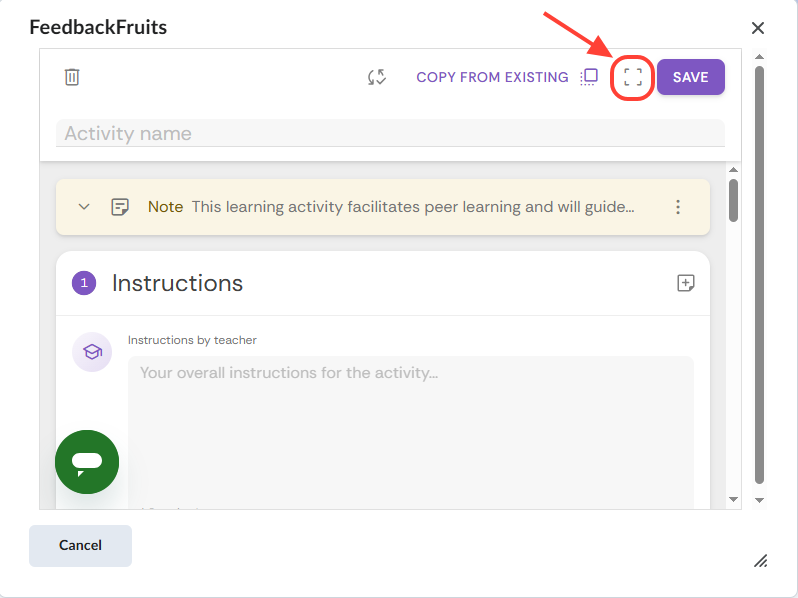
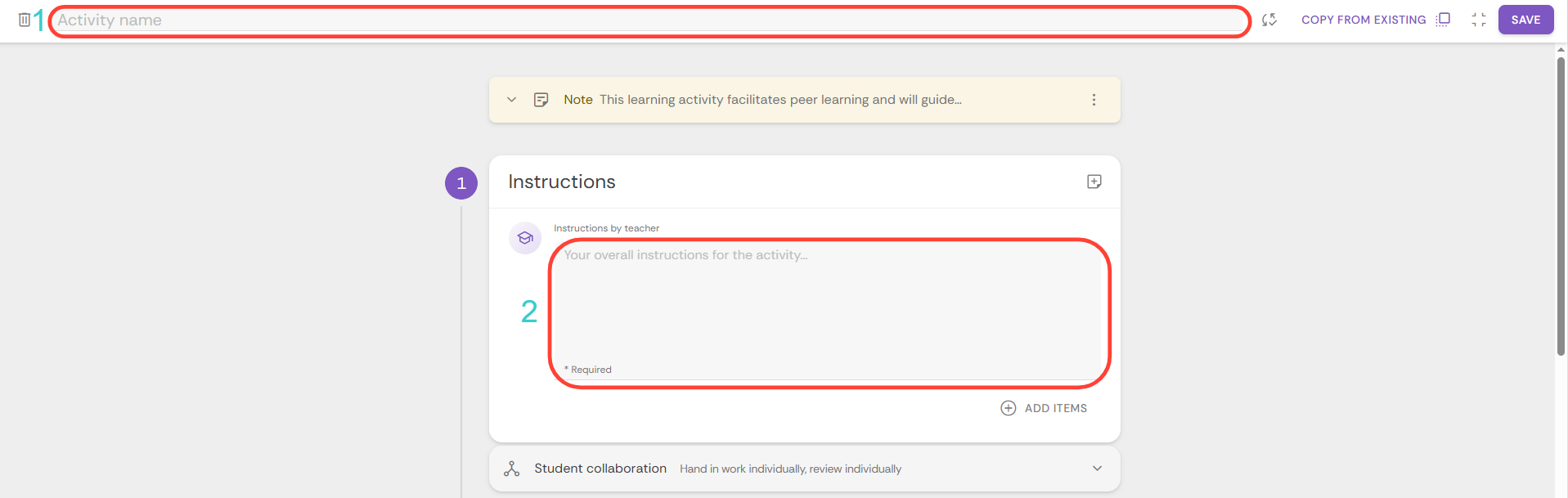
First, enter the Activity name at the top, then enter the Instructions by teacher under step 1 Instructions
Under Student collaboration, you can indicate whether students submit work individually or as a group and whether they are assessed individually or as a group.
In step 2, the teacher provides feedback on the student's skills. Here, you can configure the criteria for the feedback by creating a new rubric or by selecting previously created rubrics.
You can enable Step 3 Received reviews if you want students to be able to provide feedback on the reviews they have received.
Next, under Grading, you can adjust the settings for any marks. If you do not want to assign a mark, you can delete this section using the x:

Additional instructions for instructors
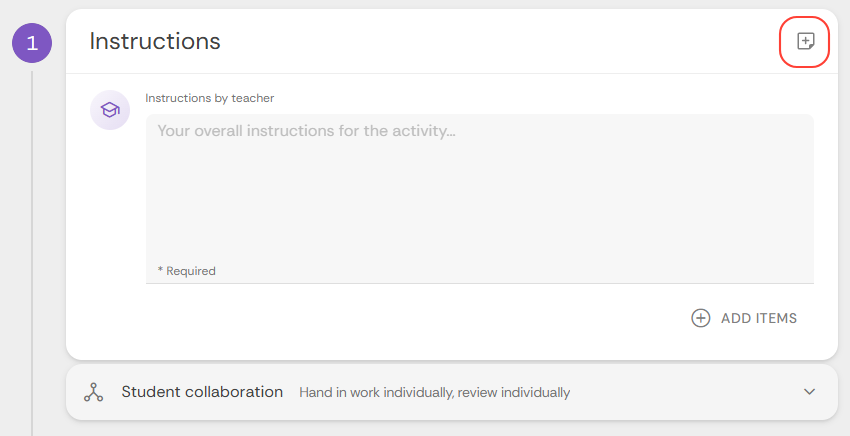
Adding extra steps
If you wish, you can also add other steps by clicking on + Add learning step at the bottom. You can then choose from
- Reflections
Are you finished? Then click on SAVE in the top right corner.